
You export the photo, FTPush uploads it, and it lands in ScorePlay. So far so good. But unless ScorePlay knows which match that photo belongs to, it sits in a generic folder waiting to be moved manually. During a live event (halftime, between rounds, end of a session) that delay adds up.
ScorePlay has a solution: automatic collection routing based on IPTC keywords. Upload a photo with the right keyword embedded, and it routes itself to the correct match collection without any manual intervention. FTPush has a feature built exactly for this: IPTC Presets. Configure it once before the match, and every photo you upload from that point on carries the right keyword automatically.
This workflow applies to any sport covered through ScorePlay: football leagues like LaLiga, Premier League, Bundesliga or Serie A; basketball competitions; cycling; esports. If your workspace has a SportsRadar or Opta data integration, the IPTC keyword routing described here works the same way.
How ScorePlay's automatic routing works
ScorePlay scans the IPTC Keywords field of every photo uploaded via FTP. If it finds a keyword that matches the External ID of one of your collections, the photo is automatically routed there. Two keyword formats are supported:
| Data provider | Keyword format | Example |
|---|---|---|
| SportsRadar | sp_[ID] |
sp_4521 |
| Opta / Stats Perform | opta_g[ID] |
opta_g8841 |
Which format you use depends on which data provider your ScorePlay workspace is integrated with. LaLiga collections typically use SportsRadar (sp_), while UEFA competitions often use Opta (opta_). Your ScorePlay admin or CSM can confirm which applies to your workspace.
Step 1: Get the match keyword
Before configuring FTPush, you need the keyword for each match you're covering. How you get it depends on your access level in ScorePlay:
If you have admin access
Navigate to the match collection in ScorePlay, click the ··· menu → Edit, and scroll down to Advanced settings. You'll find a field with a value like match4521, sradar_sr:sport_event:4521, or optaomo_F_g8841.

sp_: so match4521 or sradar_sr:sport_event:4521 both become sp_4521. For Opta IDs, keep the g and the number: so optaomo_F_g8841 becomes opta_g8841.
If you are a photographer without admin access
You won't be able to access Advanced settings. Your ScorePlay admin or the editor coordinating the coverage will provide you with the ready-made keyword for each match: something like sp_4521 or opta_g8841. Ask for it before the session starts.
Either way, once you have the keyword, the rest of the setup is identical.
Step 2: Configure IPTC Presets in FTPush
Open FTPush Settings (menu bar icon → Settings…), select your ScorePlay connection in the sidebar, and go to the Configuration tab. You'll find the IPTC Presets section with a toggle to enable it.
Create one preset per match: give it a descriptive name so you can identify it quickly at a glance, and enter the keyword you extracted from ScorePlay. For a competition with multiple matches on the same matchday, add one preset per match.
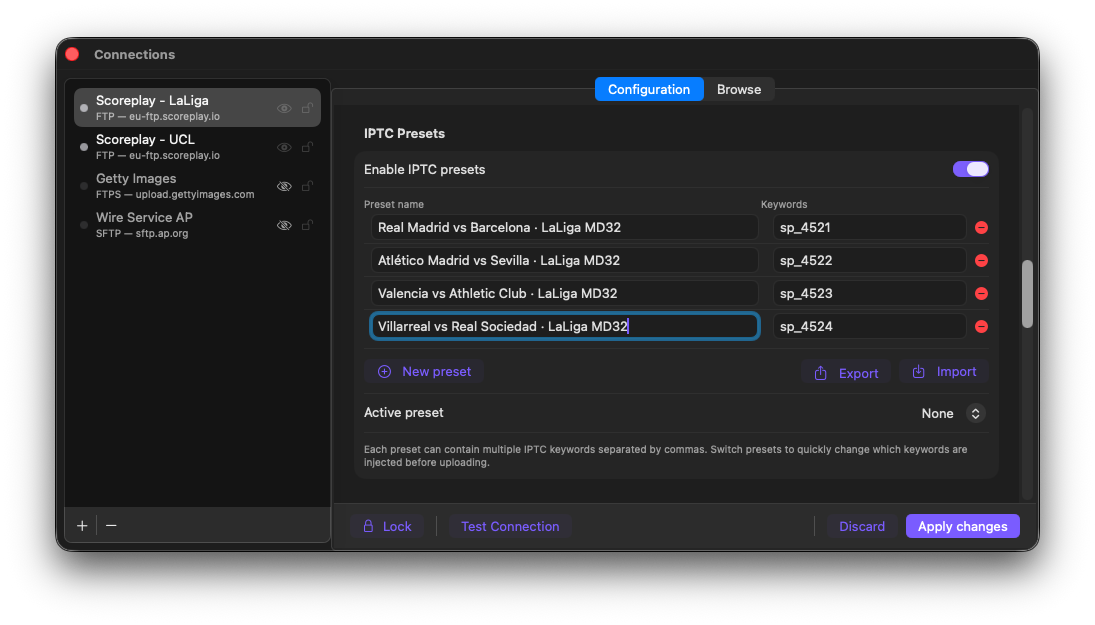
LaLiga MD32: four presets, one per match, each with its sp_ keyword
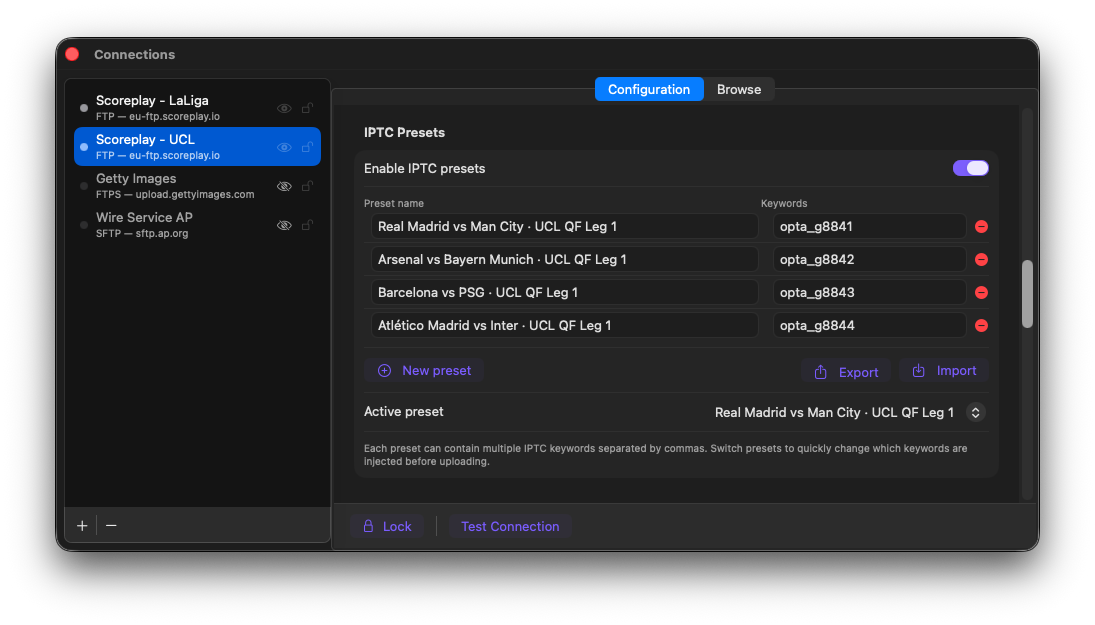
UCL Quarter-finals: same structure, using opta_ keywords. The active preset is already set.
Step 3: Select and switch presets from the menu bar
Once your presets are configured, open the FTPush menu bar popover and click the connection name to reveal the preset selector. Pick the match you're covering: that keyword will be injected automatically into every photo from that moment on.
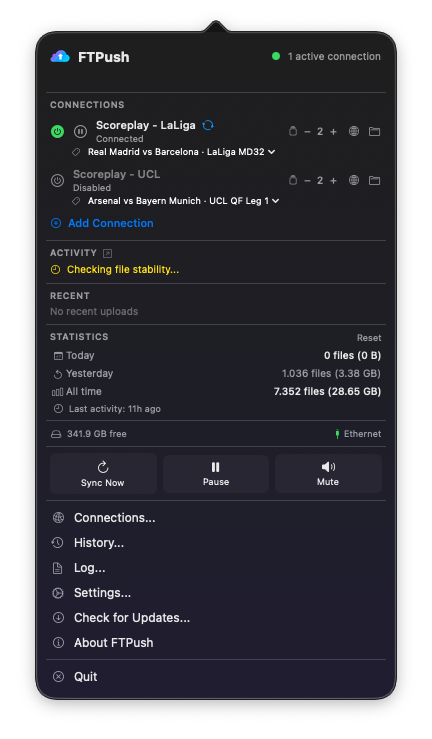
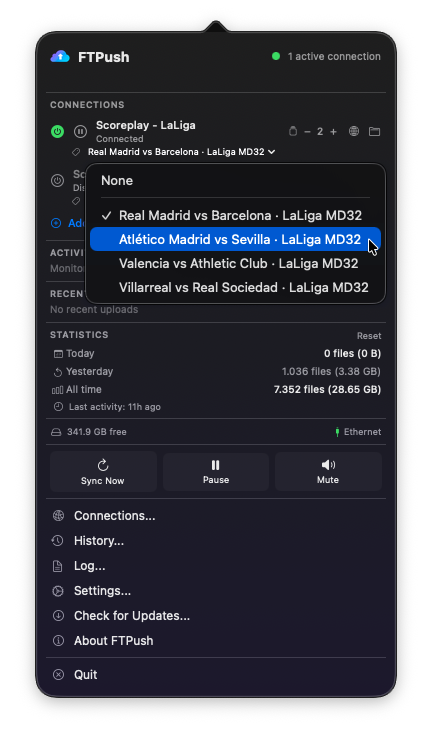
If you're covering several matches in the same day, switching takes three seconds: tap the selector and pick the next match. The same workflow applies to remote editors: configure the presets before the session, set the active one, and drop files into the watched folder. FTPush handles the rest.
The full workflow, end to end
- Before the event. Open ScorePlay, find the match collections, extract the keywords (
sp_XXXXoropta_gXXXX). Configure your IPTC Presets in FTPush: one per match. Set the active preset for your first match. - During the event. Edit and export your photos to the watched folder as usual. FTPush detects each file, injects the active keyword into the IPTC Keywords field, and uploads to ScorePlay. You don't touch FTPush again.
- ScorePlay receives the file. It reads the keyword, matches it against your collection External IDs, and routes the photo to the correct match collection: automatically and immediately.
- Editors see the photos in the right place. No sorting, no manual moves, no "which folder was that again?" The photo lands exactly where it needs to be.
sp_ and opta_ keyword formats trigger automatic routing in ScorePlay. Other formats (including custom internal identifiers) will not match. If photos are not routing as expected, double-check the keyword extracted from Advanced settings and confirm there are no extra spaces or characters.