
You export the photo, FTPush uploads it, and it lands in ScorePlay. So far so good. But unless ScorePlay knows which match that photo belongs to, it sits in a generic folder waiting to be moved manually. During a live event (halftime, between rounds, end of a session) that delay adds up.
ScorePlay has a solution: automatic collection routing based on IPTC keywords. Upload a photo with the right keyword embedded, and it routes itself to the correct match collection without any manual intervention. FTPush has a feature built exactly for this: IPTC Presets. Configure it once before the match, and every photo you upload from that point on carries the right keyword automatically.
This workflow applies to any sport covered through ScorePlay: football leagues like LaLiga, Premier League, Bundesliga or Serie A; basketball competitions; cycling; esports. If your workspace has a SportsRadar or Opta data integration, the IPTC keyword routing described here works the same way.
How ScorePlay's automatic routing works
ScorePlay scans the IPTC Keywords field of every photo uploaded via FTP. If it finds a keyword that matches the External ID of one of your collections, the photo is automatically routed there. Two keyword formats are supported:
| Data provider | Keyword format | Example |
|---|---|---|
| SportsRadar | sp_[ID] |
sp_4521 |
| Opta / Stats Perform | opta_g[ID] |
opta_g8841 |
Which format you use depends on which data provider your ScorePlay workspace is integrated with. LaLiga collections typically use SportsRadar (sp_), while UEFA competitions often use Opta (opta_). Your ScorePlay admin or CSM can confirm which applies to your workspace.
Step 1: Get the match keyword
Before configuring FTPush, you need the keyword for each match you're covering. How you get it depends on your access level in ScorePlay:
If you have admin access
Navigate to the match collection in ScorePlay, click the ··· menu → Edit, and scroll down to Advanced settings. You'll find a field with a value like match4521, sradar_sr:sport_event:4521, or optaomo_F_g8841.

sp_: so match4521 or sradar_sr:sport_event:4521 both become sp_4521. For Opta IDs, keep the g and the number: so optaomo_F_g8841 becomes opta_g8841.
如果您是没有管理员权限的摄影师
您将无法访问高级设置。您的ScorePlay管理员或协调报道的编辑将为您提供每场比赛的现成关键词: 类似sp_4521或opta_g8841这样的内容。在会话开始前请求它。
无论如何,一旦您有了关键词,其余的设置是相同的。
步骤2:在FTPush中配置IPTC预设
打开FTPush设置(菜单栏图标 → 设置…),在侧边栏中选择您的ScorePlay连接,然后转到配置选项卡。您会找到带有启用切换开关的IPTC预设部分。
每场比赛创建一个预设:给它一个描述性名称,这样您可以一眼快速识别它,并输入您从ScorePlay提取的关键词。对于同一比赛日有多场比赛的赛事,每场比赛添加一个预设。
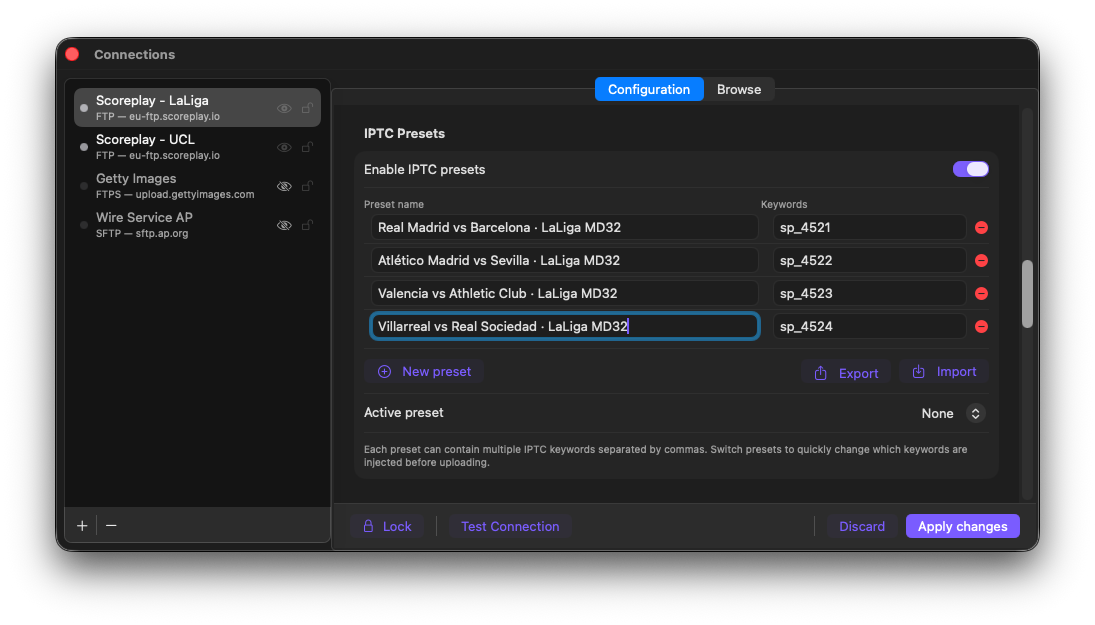
西甲MD32: 四个预设,每场比赛一个,各自带有sp_关键词
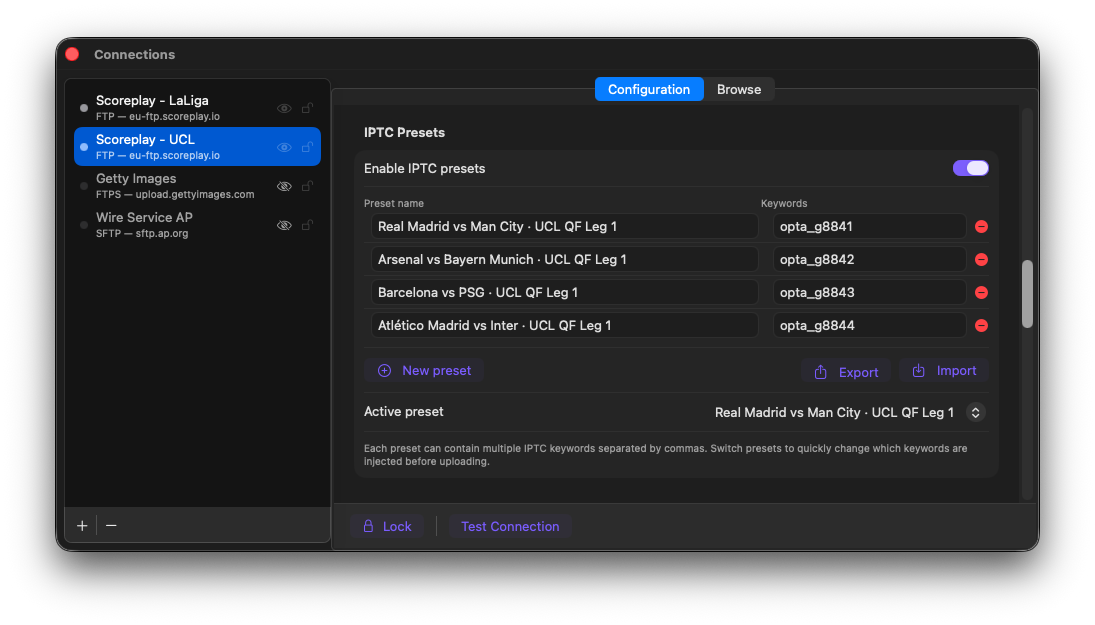
欧冠四分之一决赛: 相同结构,使用opta_关键词。活动预设已经设置好。
步骤3:从菜单栏选择和切换预设
配置好预设后,打开FTPush菜单栏弹出框并点击连接名称以显示预设选择器。选择您正在报道的比赛: 从那一刻起,该关键词将自动注入每张照片中。
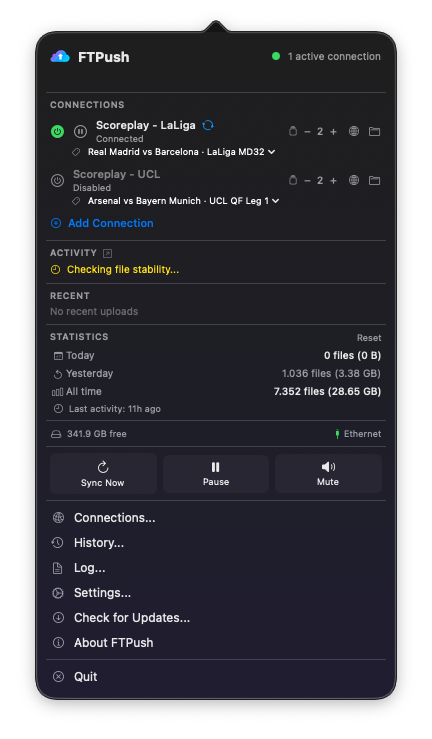
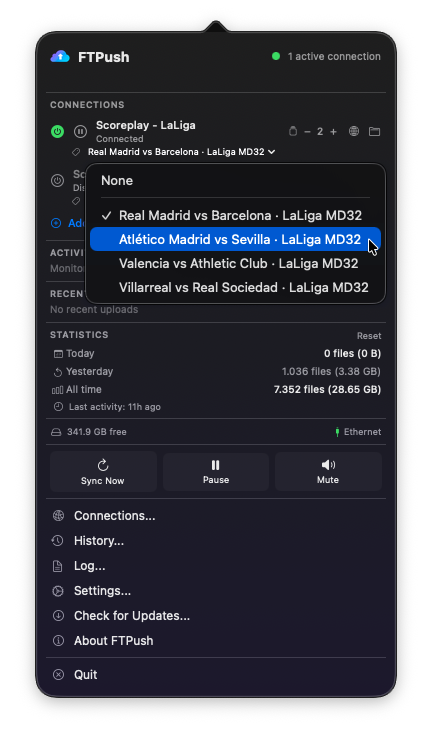
如果您在同一天报道几场比赛,切换只需三秒:点击选择器并选择下一场比赛。同样的工作流程适用于远程编辑: 在会话前配置预设,设置活动预设,并将文件放入监控文件夹。FTPush会处理其余的事情。
从头到尾的完整工作流程
- 活动前。打开ScorePlay,找到比赛集合,提取关键词(
sp_XXXX或opta_gXXXX)。在FTPush中配置您的IPTC预设: 每场比赛一个。为您的第一场比赛设置活动预设。 - 活动期间。像往常一样编辑并将照片导出到监控文件夹。FTPush检测每个文件,将活动关键词注入IPTC关键词字段,并上传到ScorePlay。您不再需要触碰FTPush。
- ScorePlay接收文件。它读取关键词,与您的集合外部ID进行匹配,并将照片路由到正确的比赛集合: 自动且即时。
- 编辑在正确的地方看到照片。无需排序,无需手动移动,不会出现"那又是哪个文件夹来着?"的情况。照片准确落在它需要的地方。
sp_和opta_关键词格式才能在ScorePlay中触发自动路由。其他格式 (包括自定义内部标识符) 将不会匹配。如果照片没有按预期路由,请仔细检查从高级设置中提取的关键词,并确认没有额外的空格或字符。