
You export the photo, FTPush uploads it, and it lands in ScorePlay. So far so good. But unless ScorePlay knows which match that photo belongs to, it sits in a generic folder waiting to be moved manually. During a live event (halftime, between rounds, end of a session) that delay adds up.
ScorePlay has a solution: automatic collection routing based on IPTC keywords. Upload a photo with the right keyword embedded, and it routes itself to the correct match collection without any manual intervention. FTPush has a feature built exactly for this: IPTC Presets. Configure it once before the match, and every photo you upload from that point on carries the right keyword automatically.
This workflow applies to any sport covered through ScorePlay: football leagues like LaLiga, Premier League, Bundesliga or Serie A; basketball competitions; cycling; esports. If your workspace has a SportsRadar or Opta data integration, the IPTC keyword routing described here works the same way.
How ScorePlay's automatic routing works
ScorePlay scans the IPTC Keywords field of every photo uploaded via FTP. If it finds a keyword that matches the External ID of one of your collections, the photo is automatically routed there. Two keyword formats are supported:
| Data provider | Keyword format | Example |
|---|---|---|
| SportsRadar | sp_[ID] |
sp_4521 |
| Opta / Stats Perform | opta_g[ID] |
opta_g8841 |
Which format you use depends on which data provider your ScorePlay workspace is integrated with. LaLiga collections typically use SportsRadar (sp_), while UEFA competitions often use Opta (opta_). Your ScorePlay admin or CSM can confirm which applies to your workspace.
Step 1: Get the match keyword
Before configuring FTPush, you need the keyword for each match you're covering. How you get it depends on your access level in ScorePlay:
If you have admin access
Navigate to the match collection in ScorePlay, click the ··· menu → Edit, and scroll down to Advanced settings. You'll find a field with a value like match4521, sradar_sr:sport_event:4521, or optaomo_F_g8841.

sp_: so match4521 or sradar_sr:sport_event:4521 both become sp_4521. For Opta IDs, keep the g and the number: so optaomo_F_g8841 becomes opta_g8841.
Yönetici erişimi olmayan bir fotoğrafçıysanız
Gelişmiş ayarlara erişemezsiniz. ScorePlay yöneticiniz veya haberciliği koordine eden editör, her maç için hazır anahtar kelimeyi size sağlayacaktır: sp_4521 veya opta_g8841 gibi bir şey. Oturum başlamadan önce isteyin.
Her iki durumda da anahtar kelimeye sahip olduğunuzda kurulumun geri kalanı aynıdır.
Adım 2: FTPush'ta IPTC Önayarlarını Yapılandırın
FTPush Ayarlarını açın (menü çubuğu simgesi → Ayarlar…), kenar çubuğunda ScorePlay bağlantınızı seçin ve Yapılandırma sekmesine gidin. Etkinleştirmek için bir geçiş düğmesiyle IPTC Önayarları bölümünü bulacaksınız.
Her maç için bir önayar oluşturun: bir bakışta hızlıca tanımlayabileceğiniz açıklayıcı bir ad verin ve ScorePlay'den çıkardığınız anahtar kelimeyi girin. Aynı maç gününde birden fazla maçı olan bir turnuva için her maç için bir önayar ekleyin.
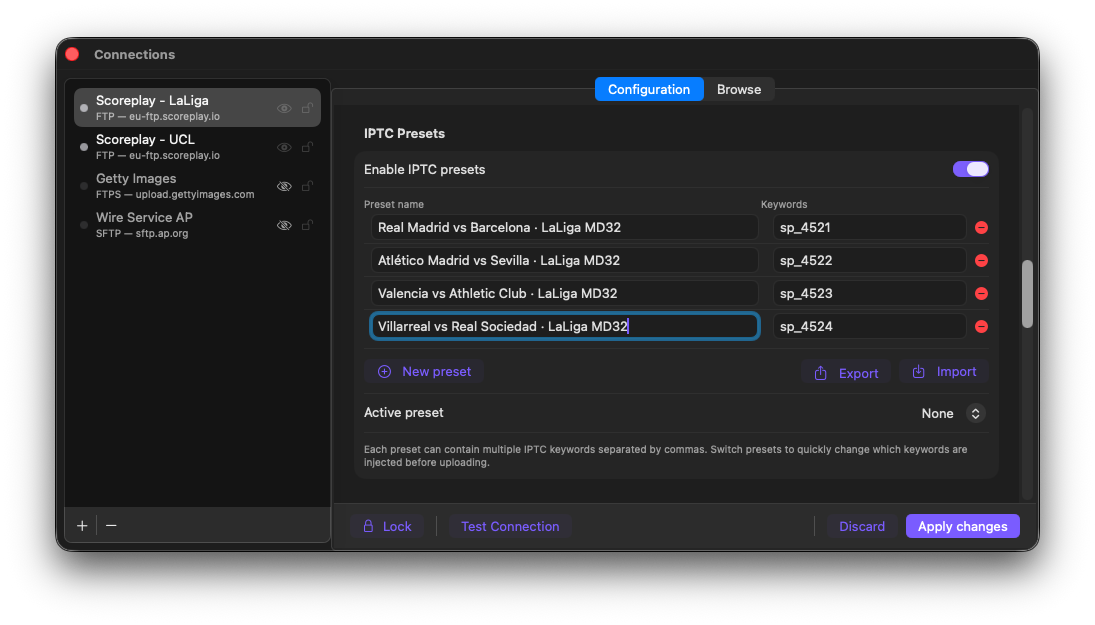
LaLiga MD32: dört önayar, her maç için biri, her biri kendi sp_ anahtar kelimesiyle
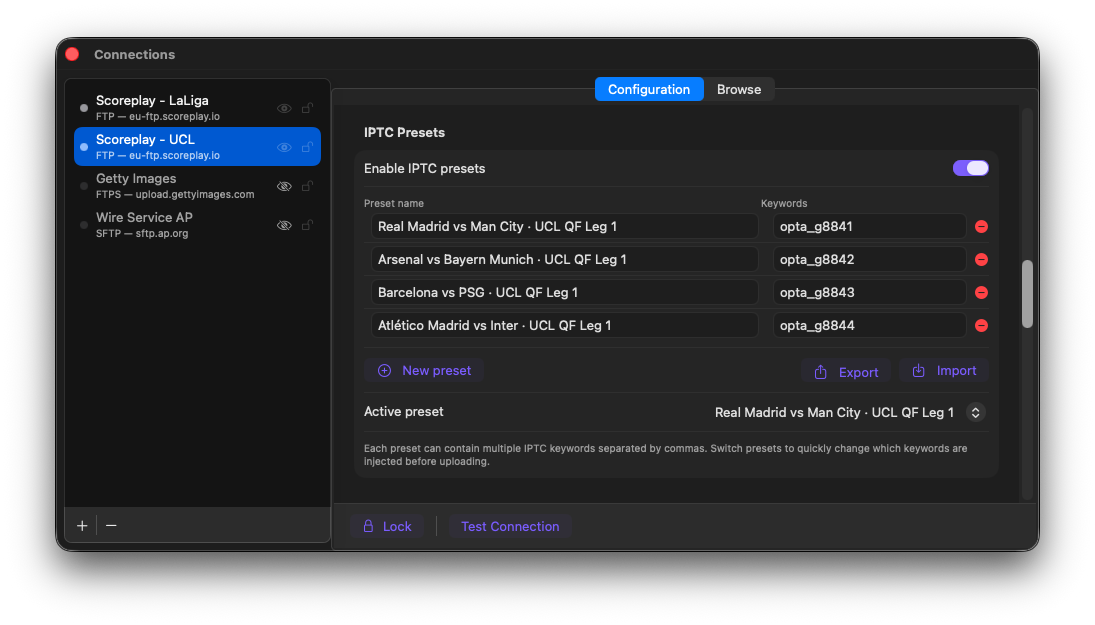
UCL Çeyrek finalleri: aynı yapı, opta_ anahtar kelimeleri kullanılarak. Aktif önayar zaten ayarlanmış.
Adım 3: Menü çubuğundan önayarları seçin ve değiştirin
Önayarlarınız yapılandırıldıktan sonra, FTPush menü çubuğu açılır penceresini açın ve önayar seçiciyi göstermek için bağlantı adına tıklayın. Kapsadığınız maçı seçin: o anahtar kelime o andan itibaren her fotoğrafa otomatik olarak enjekte edilecektir.
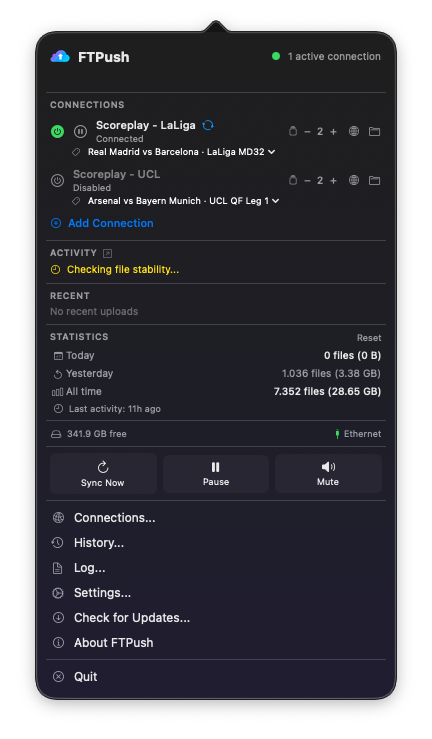
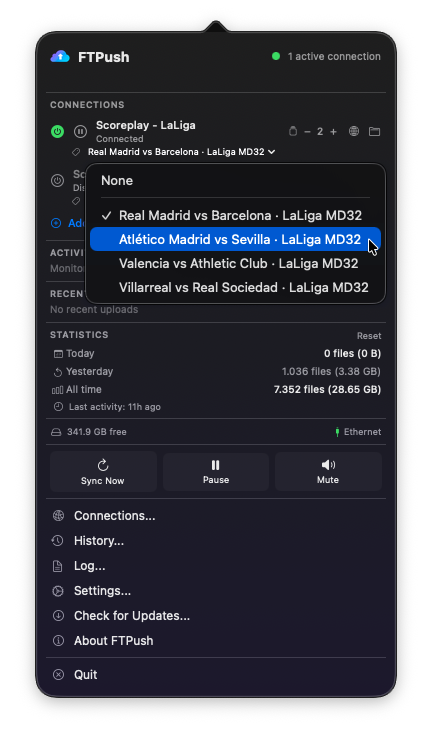
Aynı günde birkaç maçı kapsıyorsanız, geçiş üç saniye sürer: seçiciye dokunun ve bir sonraki maçı seçin. Aynı iş akışı uzak editörler için de geçerlidir: önayarları oturumdan önce yapılandırın, aktif olanı ayarlayın ve dosyaları izlenen klasöre bırakın. FTPush gerisini halleder.
Baştan sona tam iş akışı
- Etkinlikten önce. ScorePlay'i açın, maç koleksiyonlarını bulun, anahtar kelimeleri çıkarın (
sp_XXXXveyaopta_gXXXX). FTPush'ta IPTC Önayarlarınızı yapılandırın: her maç için bir tane. İlk maçınız için aktif önayarı ayarlayın. - Etkinlik sırasında. Fotoğraflarınızı her zamanki gibi düzenleyin ve izlenen klasöre aktarın. FTPush her dosyayı algılar, aktif anahtar kelimeyi IPTC Anahtar Kelimeler alanına enjekte eder ve ScorePlay'e yükler. FTPush'a bir daha dokunmazsınız.
- ScorePlay dosyayı alır. Anahtar kelimeyi okur, koleksiyon Harici Kimliklerinizle eşleştirir ve fotoğrafı doğru maç koleksiyonuna yönlendirir: otomatik olarak ve anında.
- Editörler fotoğrafları doğru yerde görür. Sıralama yok, manuel taşıma yok, "o hangi klasördü?" yok. Fotoğraf tam olarak olması gereken yere iner.
sp_ ve opta_ anahtar kelime formatları ScorePlay'de otomatik yönlendirmeyi tetikler. Diğer formatlar (özel dahili tanımlayıcılar dahil) eşleşmeyecektir. Fotoğraflar beklendiği gibi yönlendirilmiyorsa, Gelişmiş ayarlardan çıkarılan anahtar kelimeyi iki kez kontrol edin ve fazladan boşluk veya karakter olmadığını onaylayın.